CA - Why “Device is Not Compliant” Blocks Sign-In in Microsoft Intune - Part2
Step by step - how to fix it
3/5/20262 min read
Why “Device is not compliant” blocks sign-in (and how to fix it)
Users are blocked by Conditional Access with the message “Device is not compliant” even though the device appears healthy and managed.
What this guide covers
How Conditional Access evaluates device compliance in Microsoft Entra ID
How compliance status is calculated in Microsoft Intune
A fast troubleshooting process to restore access
Why this error happens
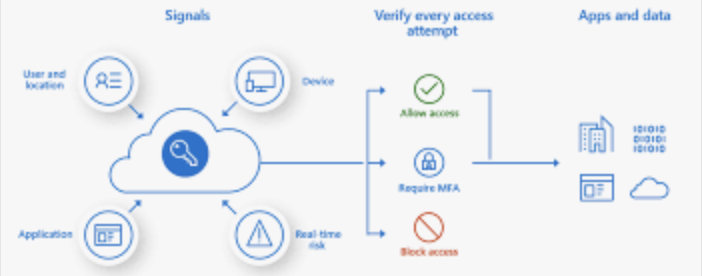
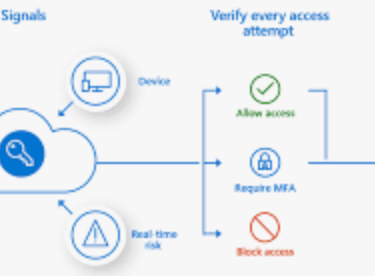
When a user signs in to a Microsoft cloud service, Conditional Access evaluates multiple signals before granting access.
For device-based access, the policy checks three key conditions:
The device must exist in Entra ID
The device must be managed by Intune
The device must be compliant
If any of these signals fail, Conditional Access blocks the sign-in.
The important detail many administrators miss is this:
Compliance is not determined at sign-in time.
It is based on the latest compliance evaluation reported from Intune.
If the device has not evaluated recently, Entra will still treat it as non-compliant.
Step 1 — Confirm the Conditional Access failure
Start by validating that Conditional Access is actually the reason for the block.
Go to:
Entra admin center → Sign-in logs
Open the failed sign-in and check:
Conditional Access → Result
Look for:
Policy applied: Require compliant device
Grant control failed: Device not compliant
If this appears, you know the identity portion succeeded and the failure occurred during device evaluation.
Step 2 — Check the device record in Entra ID
Next, confirm that the device identity is valid.
Navigate to:
Entra admin center → Devices → All devices
Verify:
Device exists
Join type is correct (Joined or Hybrid Joined)
Device ID matches the device used for sign-in
Common problems here include:
Duplicate device objects
Old device registrations
Devices registered but not joined
If the device identity is incorrect, Conditional Access cannot evaluate compliance correctly.
Step 3 — Verify the compliance state in Intune
Now check the compliance evaluation.
Go to:
Intune admin center → Devices → All devices → Device
Review the Compliance status.
Typical states include:
Compliant
Not compliant
Not evaluated
The most common cause of Conditional Access blocks is Not evaluated.
This usually occurs when:
The device recently enrolled
The device has not synced recently
Compliance policies were recently assigned
Until evaluation finishes, Conditional Access treats the device as non-compliant.
Step 4 — Trigger a device sync
If compliance is outdated, force a sync.
From the Intune portal:
Devices → Device → Sync
Or on the device itself:
Settings → Accounts → Access work or school → Sync
For Windows devices, this triggers:
MDM policy refresh
Compliance re-evaluation
Status reporting back to Intune
Most compliance updates appear within a few minutes.
Step 5 — Validate the compliance policy itself
If the device still reports non-compliant, check the policy configuration.
Navigate to:
Intune → Devices → Compliance policies
Common causes include:
BitLocker required but not enabled
Secure Boot requirement not met
OS version requirement too strict
Antivirus requirement misconfigured
One incorrect rule can mark an otherwise healthy device as non-compliant.
Always check the per-setting compliance report for the device.
Summary
Conditional Access does not evaluate compliance itself
It relies on the latest compliance state from Intune
Most failures are caused by delayed evaluation or outdated status
Always check Sign-in logs → Device record → Compliance status
Trigger a device sync before deeper troubleshooting
Understanding this evaluation flow will significantly reduce time spent diagnosing Conditional Access blocks.
Go 4 IT ! 😀