How to easily get all Intune settings from a Windows device
How to and scripts
8/27/20242 min read
When a Windows device is connected, enrolled and managed by Intune you may want to know which setting are applied.
Let's say you have configured a few configuration policies,and defender settings and now you need to know if the have applied without testing each setting on the device.
Option 1 : Collect the MDM diagnostics file and start to search it. This file gets the information from the registry .
Registry path for all setttings is:
HKEY_LOCAL_MACHINESOFTWAREMicrosoftPolicyManagercurrentdevice
Option 2 :(the easy and fast way)
Use PowerShell to get all the registry settings and present them in either a Grid-View or in excel. It only takes a second to run the script.
*Note: the script does not include all the KNOBS (power etc) settings. Remove the filter in the script if you need to see them .
Open PowerShell ISE and run this script to get the settings in a Grid-View:
----------------------------------------
# Define the registry path
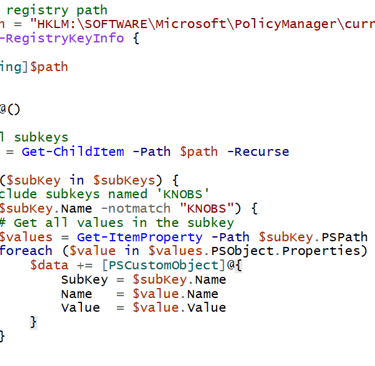
$registryPath = "HKLM:SOFTWAREMicrosoftPolicyManagercurrentdevice"
function Get-RegistryKeyInfo {
param (
[string]$path
)
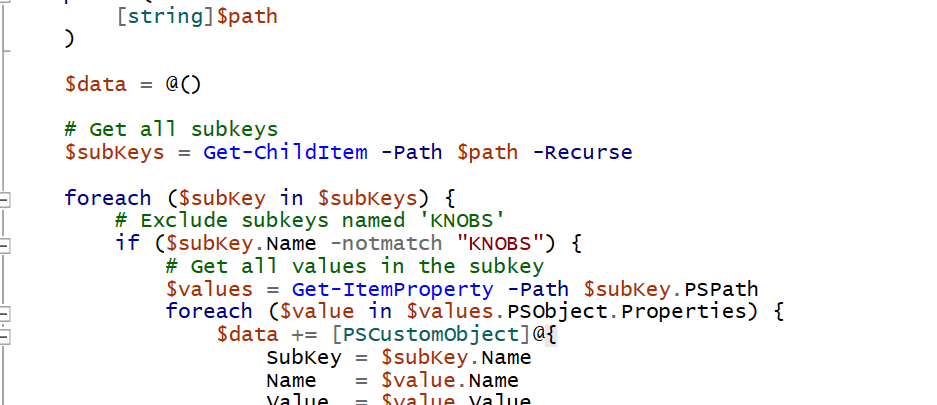
$data = @()
# Get all subkeys
$subKeys = Get-ChildItem -Path $path -Recurse
foreach ($subKey in $subKeys) {
# Exclude subkeys named 'KNOBS'
if ($subKey.Name -notmatch "KNOBS") {
# Get all values in the subkey
$values = Get-ItemProperty -Path $subKey.PSPath
foreach ($value in $values.PSObject.Properties) {
$data += [PSCustomObject]@{
SubKey = $subKey.Name
Name = $value.Name
Value = $value.Value
}
}
}
}
# Sort the data by SubKey
$sortedData = $data | Sort-Object -Property SubKey
# Display the sorted data in a grid view
$sortedData | Out-GridView
}
# Call the function with the specified registry path
Get-RegistryKeyInfo -path $registryPath
---------------------------------------------------------
Open PowerShell ISE and run this script to get the settings in Excel:
*NOTE: this will import the Excel Module and that you specify where your excel file will be created.(in the end of the script.
----------------------------------------------------
Install-Module -Name ImportExcel -Scope CurrentUser
Import-Module ImportExcel
# Define the registry path
$registryPath = "HKLM:SOFTWAREMicrosoftPolicyManagercurrentdevice"
function Get-RegistryKeyInfo {
param (
[string]$path
)
$data = @()
# Get all subkeys
$subKeys = Get-ChildItem -Path $path -Recurse
foreach ($subKey in $subKeys) {
# Exclude subkeys named 'KNOBS'
if ($subKey.Name -notmatch "KNOBS") {
# Get all values in the subkey
$values = Get-ItemProperty -Path $subKey.PSPath
foreach ($value in $values.PSObject.Properties) {
$data += [PSCustomObject]@{
SubKey = $subKey.Name
Name = $value.Name
Value = $value.Value
}
}
}
}
# Sort the data by SubKey
$sortedData = $data | Sort-Object -Property SubKey
# Export the sorted data to an Excel file
$sortedData | Export-Excel -Path "C:FOLDERPATHNAME.xlsx" -WorksheetName "RegistryData"
}
# Call the function with the specified registry path
Get-RegistryKeyInfo -path $registryPath