How to get the Kerberos Cloud Trust ticket automatically
Step by step , how to get the Kerberos ticket automatically
2/1/20253 min read

Ok , so you have enabled Cloud Kerberos trust for the Cloud Only Devices and you have discovered that the device will not get the ticket automatically after connecting via VPN ? Yep, that is a problem that needs to be solved....
The easy way (that usually works)
Login to Intune
Select Devices / Windows / Configuration profiles
Click Create Profile
Platform: Windows 10 and later
Profile type: Templates
Template name: Custom
Enter a suitable Name and Description and click Next
On the Configuration settings, click Add
Enter the following settings:
Name: Cloud Kerberos Ticket Retrieval Enabled
Description: Cloud Kerberos Ticket Retrieval Enabled
OMA-URI: ./Device/Vendor/MSFT/Policy/Config/Kerberos/CloudKerberosTicketRetrievalEnabled
Data type: Integer
Value: 1
If you have another issue due to authentication mechanisms that does not work with the setting above, you can get a bit more complex in solving the issue. Maybe the ticket will be delayed a bit before it is retrieved, then you may need to trigger it directly.
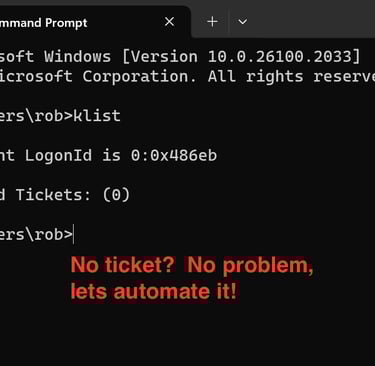
Using the command KLIST on the device will give you an empty response, no tickets at all. You need to run KLIST Get KRBTGT manually on the device to get the ticket and restore single sign on to on-premise resources.
This is not good, right? So , let's automate this instead.
What needs to be solved;
You need to get a ticket when connecting
When you disconnect , the ticket will be purged
When you re-connect you will need a new ticket
The easiest way to achieve this is to create a scheduled task on the device that runs the KLIST GET KRBTGT command as soon as the VPN (or whatever you use) is connected.
To create the task I use Intune (of course) to deploy a PowerShell script as a Win32 app to create the task . Why a Win32 app? Well, PowerShell script don't run during Autopilot and they take their sweet time before running on the device after Autopilot is completed.
So to be absolutely sure that the device will be able to get the ticket when Autopilot is completed, I deploy the Win32 app to the users during Autopilot.
To deploy the script and create the task, the Win32 app needs to be run as System.
It is really important that the script creates the task to run with logged in user and not as system. Therefore the script is configured to look for who is the actual logged in user and then create the task to run with that user.
Solution:
1. Create a powershell script that first creates the Task, then create a script that creates a script locally (Kerberos.ps1) that contains the command KLIST GET KRBTGT .
2. The task will trigger the Kerberos.ps1 script when VPN is connected.
In this scenario I use Pulse Secure as the VPN so I am going to trigger the script when a log event 312 is created in the Pulse Operational Event Log. That event will trigger the Kerberos.ps1 script will run and get the ticket to the device.
The script to get the ticket is going to start and request a ticket until a ticket is applied. When you connect with VPN, it may take a few seconds , therefore the script will wait a few seconds before attempting to request the ticket.
The script to create the task and then the Kerberos.ps1 file locally.
https://github.com/RBMCT/Scripts.git
Convert the task script to a Win32 app as usual and add to Intune.
Install command: powershell.exe -executionpolicy bypass -windowstyle hidden -file script.ps1
Uninstall command: Uninstall.ps1 ( will not be anyway so you can type whatever you want) Install as: SYSTEM
Detection Rule: C:\IT\Script exist
Configure everything else as you please.
Deploy to USERS , not devices!
You will then have:
1. A task namned GetKerberosTicket in Scheduled Tasks
2. A Kerberos.ps1 file in C:\IT\Script that will run the KLIST GET KRBTGT command for you.
That's it !
Go 4 IT ! 😀