Set up Just In Time Registration for iOs in Intune
What is JIT ? Step by step to set up JIT in Intune
7/31/20242 min read


Let's take a look at iOS Just In Time registration [JIT] in Intune
Purpose: No need for the Intune Company Portal. Allows users to enroll their devices using a work or school app.
How It Works: Uses Apple’s single sign-on (SSO) extension for Microsoft Entra registration and compliance checks. Integrates with designated apps to reduce authentication prompts and enable SSO across the device.
Compliance Checks:Automatically enabled on devices using JIT registration with compliance policies.Users can see their compliance status and fix issues directly within the app.If noncompliant, the app shows the reason and steps to resolve it.
Setup: Create an SSO app extension policy in the Microsoft Intune admin center.
Sign in to the Microsoft Intune.
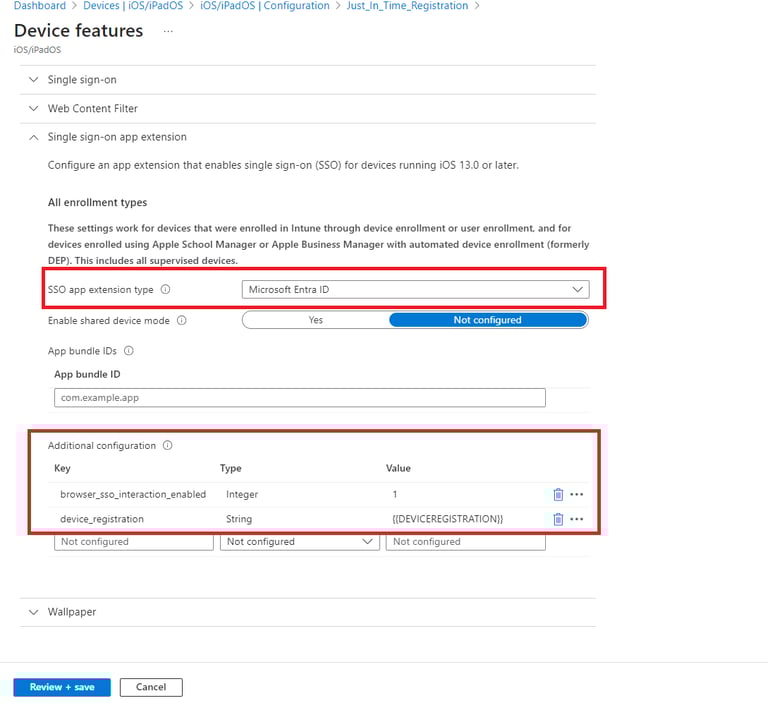
Create an iOS/iPadOS device configuration policy under Device features > Category > Single sign-on app extension.
For SSO app extension type, select Microsoft Entra ID.
Add the app bundle IDs for any non-Microsoft apps using single sign-on (SSO). The SSO extension automatically applies to all Microsoft apps, so to avoid authentication problems, don't add Microsoft apps to your policy.
Under Additional configuration, add the required key-value pair. Remove trailing spaces before and after the value and key. Otherwise just-in-time registration won't work.
Key: device_registration
Type: String
Value: {{DEVICEREGISTRATION}}
(Recommended) Add the key-value pair that enables SSO in the Safari browser for all apps in the policy. Remove trailing spaces before and after the value and key. Otherwise just-in-time registration won't work.
Key: browser_sso_interaction_enabled
Type: Integer
Value: 1
Select Next
For Assignments, assign the profile to all users, or select specific groups.
Select Next.
On the Review + create page, review your choices, and then select Create to finish creating the profile.
Go to Apps > All apps and assign Microsoft Authenticator to groups as a required app. For more information, see Add apps to Microsoft Intune and Assign apps to groups.