Top 3 Conditional Access policies to block modern attacks
How to configure the top 3 Conditional Access policies to block modern attacks
12/24/20252 min read
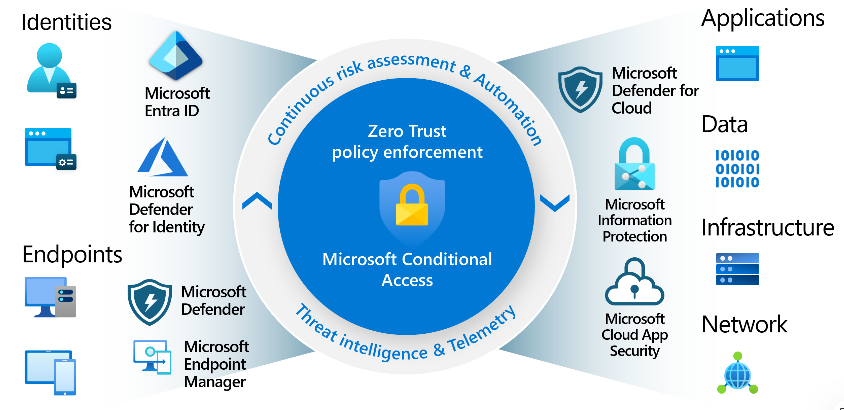
What this guide covers
The three Conditional Access policies that provide the highest security return with minimal complexity
Exact configuration guidance you can apply in under 10 minutes per policy
Common mistakes that silently weaken Conditional Access deployments
Rule 1: Require MFA for all users (with emergency exclusions)
This is the single most important Conditional Access rule. If you only deploy one policy, this should be it.
Why it matters
Stolen credentials remain the most common attack vector. MFA reduces the risk of account takeover by more than 99%, even if passwords are compromised.
Implementation steps
Go to Microsoft Entra ID → Protection → Conditional Access
Create a New policy named: CA – Require MFA for all users
Assignments
Users: All users
Exclude:
Break-glass emergency accounts (minimum two)
Target resources
Cloud apps: All cloud apps
Grant
Grant access
Require multi-factor authentication
Enable policy in Report-only mode for validation, then switch to On
Common mistake
Not excluding emergency accounts. If MFA is unavailable due to an outage, you can lock yourself out of the tenant entirely.
Rule 2: Block legacy authentication (no exceptions)
Legacy authentication does not support modern security controls such as MFA or device compliance. Any tenant that still allows it is exposed.
Why it matters
Legacy protocols (POP, IMAP, SMTP AUTH, older Office clients) are heavily abused in password spray attacks because they bypass MFA.
Implementation steps
Create a new policy named: CA – Block legacy authentication
Assignments
Users: All users
Target resources
Cloud apps: All cloud apps
Conditions
Client apps:
Select Legacy authentication clients
Grant
Block access
Enable the policy (no need for Report-only in most environments)
Common mistake
Allowing “temporary exceptions” for service accounts. These exceptions almost always become permanent and are frequently exploited.
Rule 3: Require compliant or hybrid-joined devices for privileged access
Privileged roles must only be used from managed, trusted devices. MFA alone is not sufficient for administrators.
Why it matters
Admin credentials used from unmanaged or personal devices dramatically increase the blast radius of a compromise.
Implementation steps
Create a new policy named: CA – Secure privileged roles
Assignments
Users:
Include Directory roles
Select all privileged roles (Global Admin, Intune Admin, Security Admin, etc.)
Target resources
Cloud apps: All cloud apps
Conditions
Device platforms: Any
Grant
Grant access
Require multi-factor authentication
Require device to be marked as compliant
(or Hybrid Azure AD joined if required)
Enable policy after validation
Common mistake
Applying this policy to all users. Device-based restrictions should be reserved for privileged identities, not general workforce access.
Operational guidance (important)
Always deploy new policies in Report-only first
Use Sign-in logs → Conditional Access to validate impact
Maintain separate break-glass accounts with long passwords and no MFA enforcement
Name policies clearly and consistently
Summary
Require MFA for all users to stop credential-based attacks
Block legacy authentication to eliminate MFA bypass paths
Restrict privileged access to managed devices to reduce breach impact
These three Conditional Access rules form a baseline security posture that every organization should have—regardless of size or industry.